

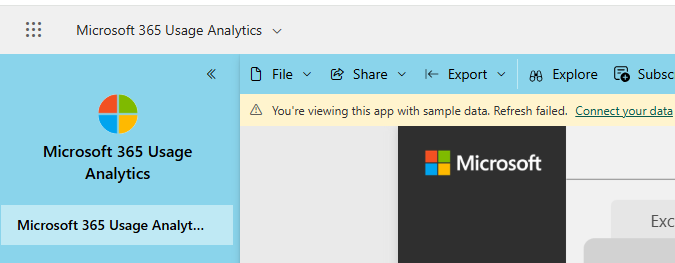
I’m testing the Microsoft 365 Usage Analytics app in the PowerBI environment. We have installed the Microsoft 365 Usage Analytics app in our powerbi space as shown on the following screen. We followed this youtube Video.
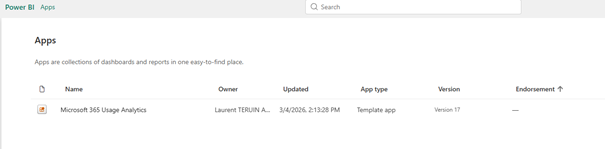
Once launched we tried to connect this application to our Tenant by specifying a Global Admin account
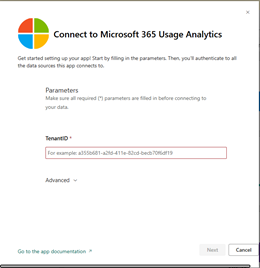
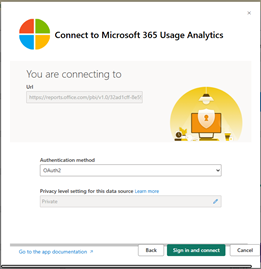
and we had this error message


We looked at the login logs in the ENTRA ID but we do not observe a login denial with the account used
The expecting solution should be (maybe) here
Immediate Fixes
- Check Connection Parameters:
- Click the Connect your data link in the yellow warning bar at the top of the app.
- Verify that parameters like Company Name, Environment, or Tenant ID match your data source exactly (e.g., in Business Central, use the exact
Namefield, not the display name).
- Update Credentials:
- Go to Settings > Datasets in the Power BI service.
- Find the dataset for the app and select Data source credentials > Edit credentials.
- Sign in again to refresh any expired Azure AD OAuth tokens or cached credentials.
- Inspect the Refresh History:
- In the dataset settings, select Refresh history to see the specific error code.
- Common errors include « Access Forbidden » (permissions), « Timeout Expired » (large datasets), or
The URL https://reports.office.com is allowed by our proxy
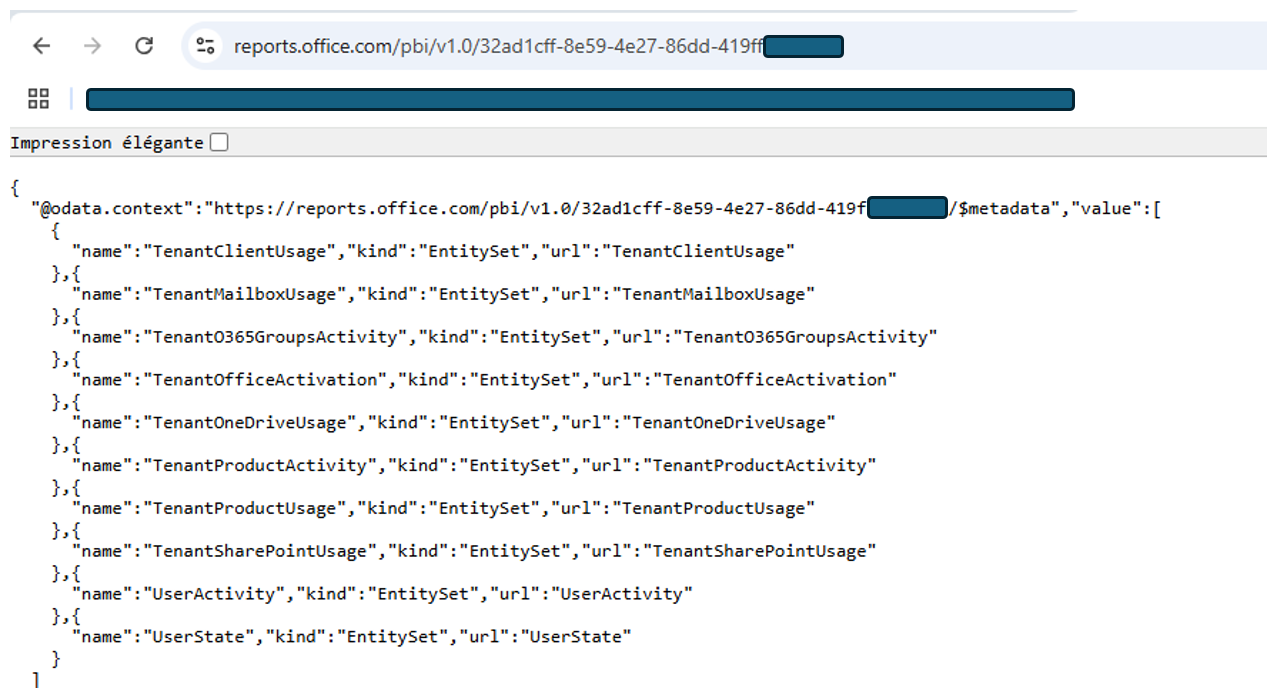
We tried to Log Out and login again but we had the same error.
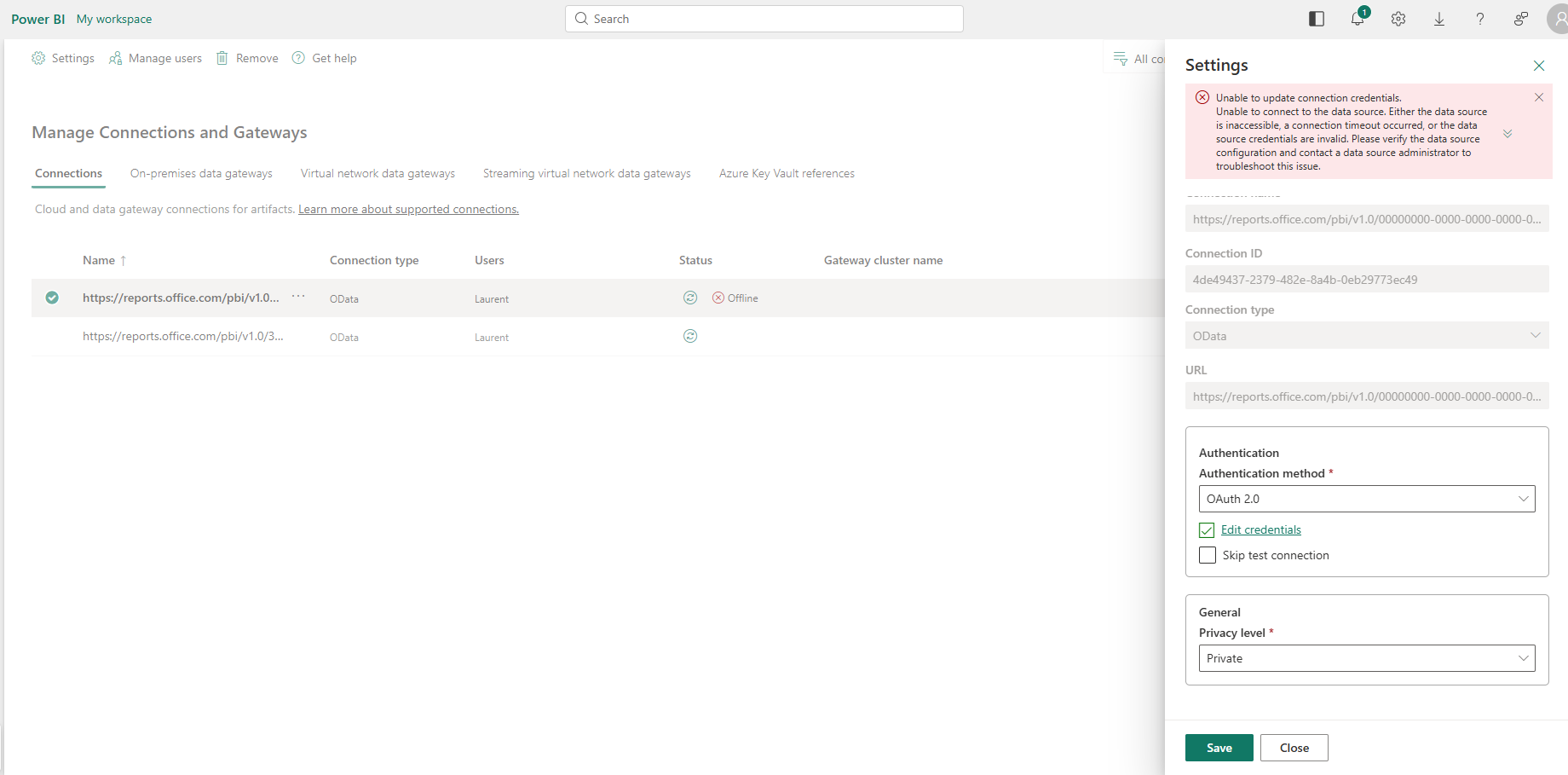
we tried to update the Credential but we had thie warning message
Unable to update connection credentials.
Unable to connect to the data source. Either the data source is inaccessible, a connection timeout occurred, or the data source credentials are invalid. Please verify the data source configuration and contact a data source administrator to troubleshoot this issue.
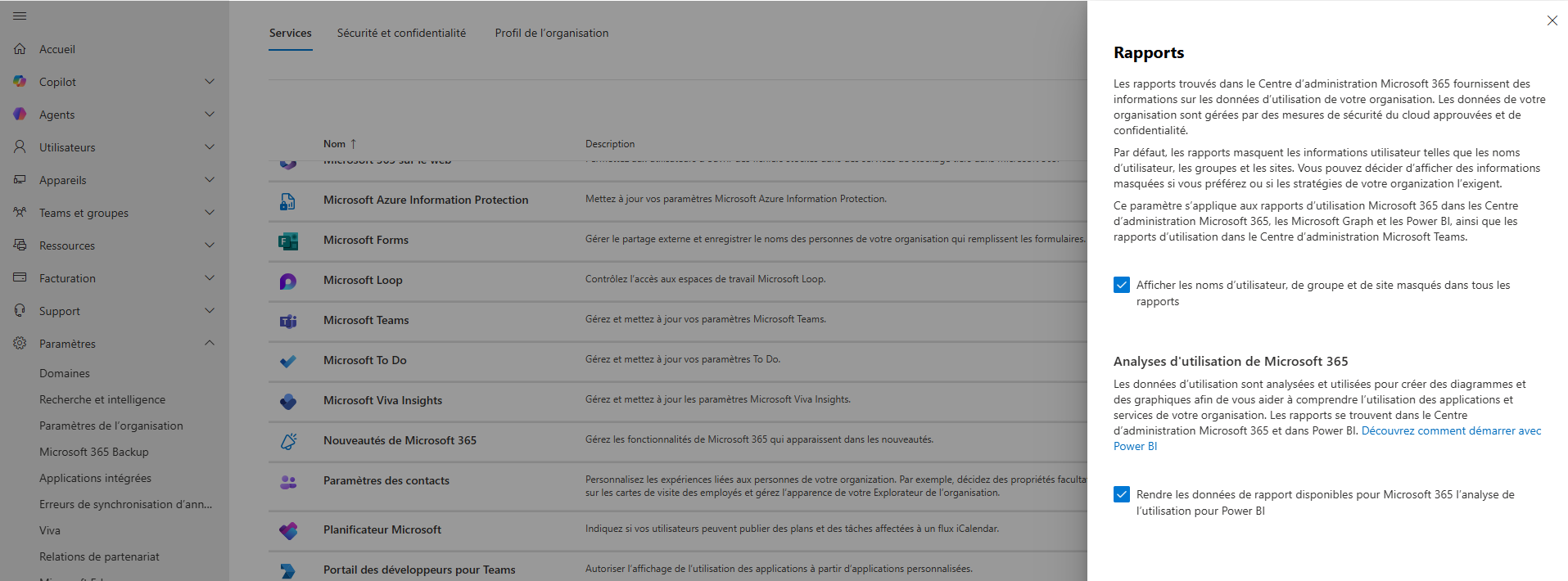
We allow Powerbi to have access to the report in the admin center
Step 1: Enable Microsoft 365 usage analytics – Microsoft 365 admin | Microsoft Learn here are the steps you need to follow to achieve your goal:
- In the admin center, go to the Settings > Org Settings page.
- Select the Services tab, then select Reports.
- In the Reports panel, select the checkbox next to Make report data available to Microsoft 365 usage analytics for Power BI.
- Select Save.
The data collection process completes in two to 48 hours depending on the size of your tenant. The Go to Power BI button is enabled (no longer gray) when data collection is complete. Once complete, the app provides historical usage data at your organization level.
 Travailler ensemble