

Introduction
Microsoft Entra ID’s Conditional Access policies allow you to control the conditions under which a user can access Microsoft 365 resources. It is also possible to set restrictions based on network location.
However, blocking a connection is only part of the security system.
For a security team or SOC, it can be just as important to detect that a login attempt has occurred, including when Microsoft Entra Conditional Access has correctly denied access.
In this article, we will look at how to use Microsoft Entra ID, Azure Monitor, and Log Analytics to detect login attempts from certain countries and automatically generate an alert.
Microsoft allows integration of Entra activity logs with Azure Monitor to analyze authentications in a Log Analytics workspace.
Why monitor connections from certain countries?
Let’s take an example. A company has defined a Conditional Access policy banning connections from multiple countries where it considers that none of its employees should normally be located. In our example, we will monitor the following countries:
- China
- Afghanistan
- North Korea
- Iran
- Yemen
- Syria
This list is obviously not universal. This is a Example of an internal geographic surveillance policy. Each organization must determine the areas to monitor based on its own risk analysis, its locations, and the movements of its users.
Now imagine an attacker has a user’s password and tries to authenticate from an IP address located in one of the monitored countries.
Conditional Access can correctly identify connection conditions and block access.
From a purely preventive point of view, the mechanism worked. But for a SecOps team, another question arises: Do we wish to be informed that such an attempt has taken place?. In many sensitive environments, the answer will be yes.
A repeated attempt may notably justify an investigation into the affected account, the source IP address, the targeted application, or other events associated with the user.
The approach therefore consists of separating two functions:
- Conditional Access protects and blocks access;
- Azure Monitor and Log Analytics detect events and generate alerts.
Step 1: Have a Log Analytics Workspace
To leverage authentication logs with KQL, you need a Log Analytics Workspace. Microsoft specifically states that a Log Analytics workspace and the corresponding permissions are required to analyze Microsoft Entra activity logs with Log Analytics.
If no Workspace exists yet, open the Azure portal, search for Log Analytics workspaces, then select Create.
You will need to select:
- Azure subscription;
- le Resource Group ;
- the name of the Workspace;
- the Azure region.
Microsoft also details how to create the Workspace in its tutorial dedicated to analyzing Sign-in Logs. In our example, the Workspace used is named AzureMonitor.
Step 2: Send Microsoft Entra Logs Sign-in to Log Analytics
The second step is to ask Microsoft Entra to send its authentication logs to Workspace Log Analytics.
From the Microsoft Entra admin center, navigate to:
Enter ID → Monitoring & health → Diagnostic settings. If a Diagnostic setting already exists, select Edit setting.
Otherwise, select Add diagnostic setting.
Microsoft does indeed allow you to create a new configuration or modify an existing one.
Step 3: enable SignInLog collection
In the Diagnostic setting, select at least the category: SignInLogs
Dans Destination details, activez ensuite : Send to Log Analytics workspace
Select your Azure subscription and then your Workspace Log Analytics.
In our example: Log Analytics workspace: AzureMonitor
Microsoft explicitly describes the selection of AuditLogs and SigninLogs, then sending these logs to a Log Analytics Workspace. Depending on monitoring needs, you can naturally collect other categories of logs.
Finally, click Save.
Microsoft notes that selected logs may take up to 15 minutes to become available in Workspace after setup.
Step 4: verify that the Sign-in Logs arrive correctly
Before creating any alert, let’s check that the data is properly available.
From Microsoft Entra, go to: Entra ID → Monitoring & health → Log Analytics
In the query editor, type:
KQL
SigninLogs
| take 20
Then click Run.
If events appear, it confirms that Log Analytics is indeed receiving the Sign-in Logs.
Step 5: identify the countries listed in the logs
Before looking only for the countries we want to monitor, it is interesting to look at the country codes actually present in the data.
Use the following query:
KQL
SigninLogs
| summarize Nombre=count()
by Country=tostring(LocationDetails.countryOrRegion)
| order by Nombre desc
This query provides a summary view of the values contained in the LocationDetails.countryOrRegion property. It is also an excellent way to verify that location information is indeed present in your environment.
Step 6: Search for connections from monitored countries
We can now create our detection query. In our example, we will use the following country codes:
- CN : China
- BY : Afghanistan
- KP : North Korea
- IR : Iran
- YE : Yemen
- Sy : Syria
The KQL query becomes:
KQL
SigninLogs
| where tostring(LocationDetails.countryOrRegion) in (« CN », »AF », »KP », »IR », »YE », »SY »)
| project
TimeGenerated,
UserPrincipalName,
UserDisplayName,
IPAddress,
Country=tostring(LocationDetails.countryOrRegion),
City=tostring(LocationDetails.city),
AppDisplayName,
ResultType,
ResultDescription,
ConditionalAccessStatus
| order by TimeGenerated desc
Research thus makes it possible to highlight various pieces of information that are particularly interesting for an investigation:
- date and time of the attempt;
- user;
- User Principal Name ;
- IP address;
- country;
- city;
- targeted application;
- connection result;
- result of Conditional Access.
Step 7: Do not search only for successful connections
This is probably the most important point of the entire setup. It would be tempting to only generate an alert when authentication from a monitored country succeeds. But that would be depriving yourself of particularly interesting security information.
If an attacker tries to use a user’s credentials from a monitored country and Conditional Access properly blocks the connection, the security team may still want to be informed of this attempt. Our research must therefore retain both successful and failed events.
The goal is to answer two distinct questions:
Has a user tried to authenticate from one of the monitored countries?
and:
Was this attempt successful or was it blocked?
This distinction is particularly interesting in the context of SecOps oversight.
Step 8: Test detection on a single country
If the previous query returns no results, it does not necessarily mean it is incorrect. It is possible that no matching event exists in the polled period.
A good method is to start by testing a single country.
For example, for China:
KQL
SigninLogs
| where tostring(LocationDetails.countryOrRegion) == « CN »
| order by TimeGenerated desc
You can also count events and users by country:
KQL
SigninLogs
| summarize
Connexions=count(),
Users=dcount(UserPrincipalName)
by Country=tostring(LocationDetails.countryOrRegion)
| order by Desc Connections
This makes it easy to check how the detection works before creating the alert.
Step 9: prepare the alert request
Once the tests are complete, we can use a simplified version of the query for our future alert:
KQL
SigninLogs
| where tostring(LocationDetails.countryOrRegion) in (« CN », »AF », »KP », »IR », »YE », »SY »)
| project
TimeGenerated,
UserPrincipalName,
IPAddress,
Country=tostring(LocationDetails.countryOrRegion),
AppDisplayName,
ResultType,
ConditionalAccessStatus

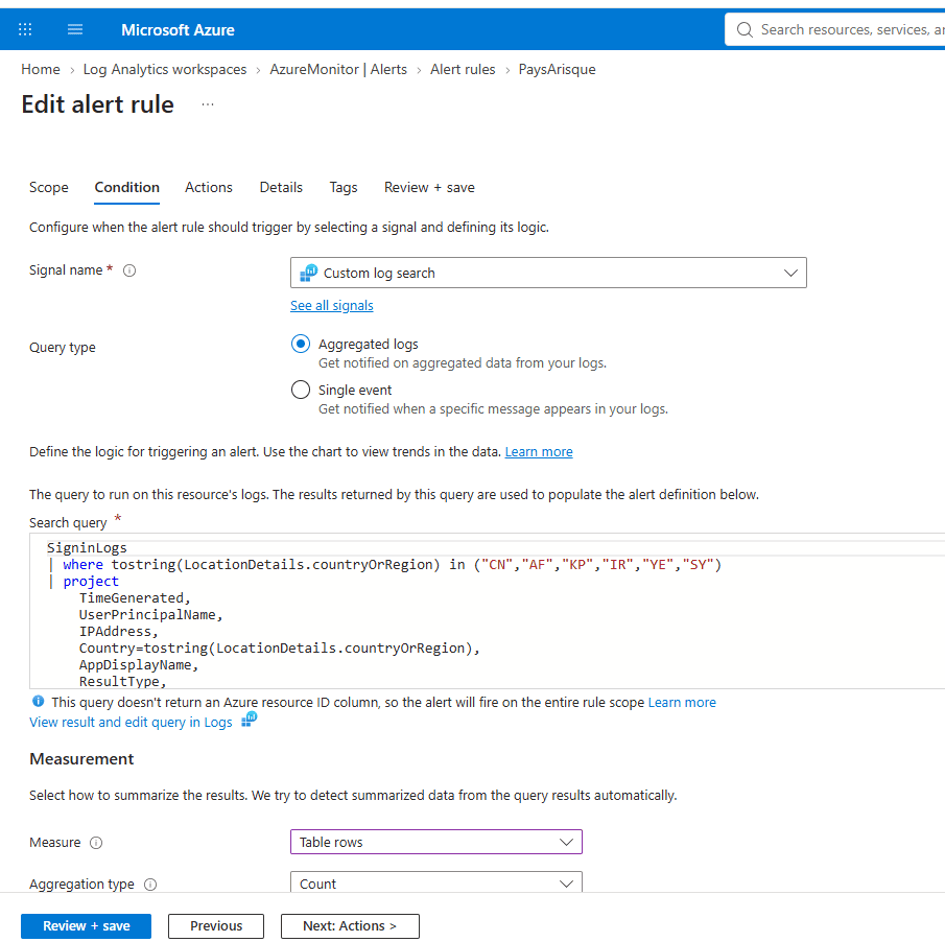
The goal is simple: as soon as an event corresponding to one of the monitored countries appears in the Sign-in Logs, the query returns a result that could be used by our alert mechanism.
Step 10: Create the Azure Monitor alert
Once the KQL query is tested, go to Azure Monitor, then open the Alerts section to create a new alert rule.
Microsoft also describes a scenario in which the Log Analytics Workspace is the monitored resource and a custom log search serves as the condition for the alert.
Select as the Scope the Log Analytics Workspace that receives the Log-in Logs.
In our example, it is: AzureMonitor. For the condition, use log search and the previously validated KQL query.
The logic sought is as follows: if the query returns an event matching the defined criteria, an alert must be generated.
Then adapt the assessment and trigger settings to your organization’s supervision policy.
Step 11: Set up notification
The next step is to determine how the security team will be notified. The alert rule can be associated with an Azure Monitor Action Group. In an enterprise environment, for example, a dedicated functional box can be used: secops@entreprise.fr. An explicit name will also help facilitate alert processing. For example:
ENTRA – Sign-in from a monitored country
The message intended for security teams should ideally allow for quick identification:
- the user concerned;
- the date and time;
- the IP address;
- the country detected;
- the relevant application;
- the authentication result;
- the result of Conditional Access.
The goal is to provide enough context to allow the SecOps team to quickly determine if further investigation is necessary.
Step 12: Test the device before it goes into production
A security alert should never be considered operational without validation. I recommend performing at least three checks.
Check the collection
Run:
KQL
SigninLogs
| take 20
This query validates that Microsoft Entra events arrive correctly in the Workspace.
Check geographic data
Run:
KQL
SigninLogs
| summarize Nombre=count()
by Country=tostring(LocationDetails.countryOrRegion)
| order by Nombre desc
This query allows verification that the values used for geographic detection are indeed present in the data.
Check the final detection
Run:
KQL
SigninLogs
| where tostring(LocationDetails.countryOrRegion) in (« CN », »AF », »KP », »IR », »YE », »SY »)
The final step is then to verify that the Azure Monitor rule actually produces the expected notification when an event matching its conditions is encountered.
Pay attention to the geolocation of connections
It is important not to consider location as an isolated security signal. During an investigation, the SecOps team will benefit from correlating the detected country with other information contained in the Sign-in Logs and other available security signals.
For example:
- the user concerned;
- the IP address;
- the requested application;
- the authentication result;
- the Conditional Access result;
- any available risk signals in Microsoft Entra.
The goal is therefore not simply to send an additional notification, but to provide enough context to the security team to qualify the event.
Conditional Access and Azure Monitor: two complementary features
This architecture ultimately clearly separates two responsibilities.
- Microsoft Entra Conditional Access enforces the access policy and can block authentication when the defined conditions are met.
- Azure Monitor and Log Analytics leverage Microsoft Entra logs to search for events matching monitoring criteria.
This distinction is important: a blocked attempt can nevertheless constitute an interesting security event. The combination of Conditional Access with Sign-in Log monitoring therefore allows a shift from a purely preventive logic to an approach combining prevention, visibility, and detection.
Conclusion
Microsoft Entra Conditional Access is an essential mechanism for controlling the conditions under which users can access Microsoft 365 resources. But an effective strategy is not just about blocking unauthorized access. It is also necessary to know that an attempt has taken place.
The association of Microsoft Entra ID, Diagnostic Settings, Azure Monitor, Log Analytics et KQL allows the use of authentication logs to detect certain organization-defined situations and integrate them into its monitoring system. Microsoft supports integrating these logs into Azure Monitor and analyzing them in Log Analytics.
In our scenario, this allows you to complete a strategy Conditional Access blocking certain geographic areas with a device capable of detecting corresponding attempts and informing security teams.
A connection can therefore be blocked by Conditional Access and simultaneously become a signal usable by SecOps.