

Over time, conditional access tends to multiply. We start with a few basic rules, then add one per platform, one per population, one per scenario, and we quickly arrive at several dozen rules. Yet most follow the same targeting and exclusions, notably break-glass accounts.
To address this issue, Microsoft introduces Conditional Access Policy Plans in Microsoft Entra ID. This feature is currently in public preview.
What is a Policy Plan?
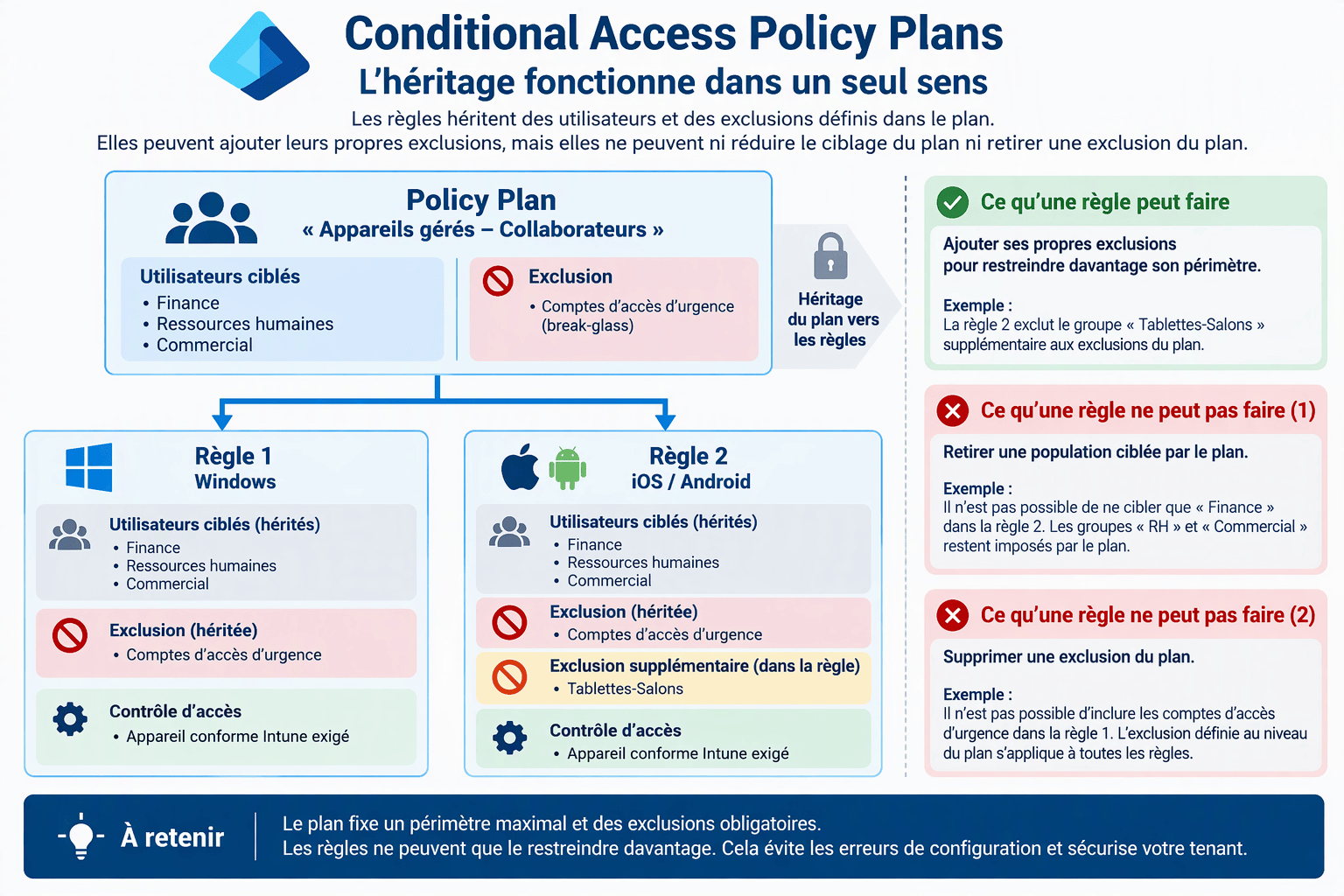
A Policy Plan brings together several conditional access rules around the same security goal : requiring compliant devices, protecting site users, or securing AI agent activity. Common elements are defined only once at the plan level. Each rule then focuses on its own scenario.
A plan consists of three elements:
- Plan details : name, description, optional labels, and owners. The owner indicates who is responsible for the plan but does not grant any permission on it.
- Shared terms : users, resources, terms, and exclusions that apply to all plan rules.
- The rules : each has its own terms and agreement or session controls. A plan must contain at least one rule.

Specifically, a rule is a classic conditional access strategy that inherits the shared conditions of its plane.
How does inheritance work?
The plan’s conditions are in addition to those of each rule. A rule can add its own exclusions, but it cannot reduce the plan’s targeting or remove an exclusion defined at the plan level. In the rule editor, these legacy settings are locked.
It’s this one-way operation that makes plans interesting. If you add the emergency access account group to the exclusions of the plan, all rules automatically benefit. No rule can forget this.
Note: the options “All users” and “All resources” can be selected in a rule, but not at the plan level.

What happens when you log in?
The application engine does not change. During a login, each rule is evaluated separately and appears as a separate entry in the logs.
Plans do not replace existing policies. Classic policies and plan rules are evaluated together, and all those that apply must be met for access to be granted. Plans therefore change the way controls are organized, not how they are applied.
Why use Policy Plans?
1. Reduce the number of strategies
Let’s take a common case: four distinct policies for Windows, macOS, iOS, and Android, targeting the same users with the same exclusions. With a plan, common targeting is set only once and each platform becomes a rule.
2. Remove duplicate exclusions
Emergency accounts, service accounts, and privileged items appear in the exclusions of many policies. A forgotten exclusion is a classic cause of involuntary blocking. With a plan, these exclusions are centralized.
3. Manage Global Secure Access at scale
Organizations deploying Global Secure Access may need hundreds of network-related rules, which often target the same users and applications. The plan groups this common targeting and each rule manages only its network perimeter.
4. Secure AI agents
A plan can define a common condition, such as high agent risk, then use separate rules for two cases: agents acting on behalf of a user and autonomous agents.
How to create a Policy Plan?
The plans are located in the Microsoft Entra admin center, under Entra ID > Conditional Access > Policy plans (Preview).
- Define the security objective of the plan, for example requiring compliant devices.
- Start from a template or create the plan from scratch. The templates already contain shared conditions and rules for common scenarios, including agent security.
- Configure shared conditions : add only what applies to all scenarios, including exclusions from emergency and service accounts.
- Add the rules : each objective variant becomes a rule with its own controls.
- Test in Report-only mode, then enable the rules once the behavior is validated.
Prerequisites: you must have the Conditional Access Administrator role to create, modify, or delete a plan.
Best practices
- Start small : take a first look at a limited scope before reorganizing all your strategies.
- Put critical exclusions at the plan level: break-glass accounts and service accounts.
- Always use Report-only mode before activation.
- Check the connection logs to ensure each rule applies as expected.
- Do not migrate production too early : the feature is in preview and may not yet have all the capabilities of the final version.
Conclusion
Conditional Access Policy Plans do not change how conditional access is enforced. Instead, they make it much easier to structure, govern, and evolve. By grouping rules by security objective and centralizing exclusions, they reduce both administrative burden and the risk of configuration errors. This is especially useful in regulated environments, where traceability and consistency of security policies are essential.
Tags: Microsoft Entra ID, Conditional Access, Conditional Access, Policy Plans, Zero Trust, Microsoft 365 Security, Global Secure Access, Agent ID, Identity, Governance
Questions and Answers about Conditional Access Policy Plans
1. What is a Conditional Access Policy Plan?
It is a new object of conditional access that groups several rules around the same security goal, such as requiring compliant devices or securing AI agent activity. Common targeting and exclusions are defined only once at the plan level. Each rule then handles its own scenario. The feature is currently in public preview.
2. How is a plan organized?
A plan consists of three parts:
- Plan details : name, description, labels, and owners. The owner indicates who is responsible for the plan but does not grant any rights over it.
- Shared ( optional) terms: users, resources, and terms that apply to all rules.
- The rules : each has its own terms and agreement or session controls. A plan must contain at least one rule.
3. What can be defined at the plan level, and what remains within the rules?
Some settings cannot be shared:
- “All users” and “All resources” can only be selected in a rule.
- Agreement and session controls exist only within the rules.
- A plan cannot target both users and workload identities at the plan level. To cover both, these identities must be targeted in the rules.
4. How does inheritance work between the plan and its rules?
The plan’s conditions are added to those of each rule. A rule inherits the targeting and exclusions of the plan, and can add its own exclusions. However, it cannot reduce the plan’s targeting or remove an exclusion defined at the plan level. These inherited settings are locked in the rule editor. This is what protects emergency accounts: if their exclusion is added to the plan, no rule can forget it.
5. Do Policy Plans replace existing conditional access policies?
No. Existing policies and plan rules are evaluated together. For access to be granted, all policies and rules that apply must be met. Plans change how controls are organized, not how they are enforced.
6. How do old strategies and plan rules concretely coexist during a connection?
During a connection, each rule in a plan is evaluated separately, like a classic policy, and appears as a separate entry in the connection logs. The usual logic remains valid: controls add up and a lock always wins. If an existing policy and a plan rule cover the same scenario, both apply.
7. How to migrate existing policies to a plan?
Microsoft provides an integrated migration wizard :
- Sign in to the Microsoft Entra admin center with at least the Conditional Access Administrator role.
- Go to Entra ID > Conditional Access > Policies.
- Dans la bannière Migrate to Conditional Access Policy plans (Preview), cliquez sur Get started.
- Select the policies to group, then click Merge policies into a plan.
The tool analyzes the selected strategies, identifies their common conditions, and proposes a plan structure to be checked before validation.
8. What happens to origin policies after migration?
They are not modified during migration. They continue to be evaluated independently. During the transition period, the same requirement can therefore be applied both by the old strategy and by the new rule.
That is why it is necessary to:
- create or leave plan rules in Report-only ;
- compare their results with those of older policies in connection logs;
- Activate the plan and disable old policies at the same time, to avoid duplicates like coverage holes.
9. What strategies should be grouped in a single plan?
Microsoft recommends selecting strategies that have the same goal, with three grouping approaches:
- By protected resource : policies that protect the same applications.
- By population : strategies that target the same users with different controls. Targeting moves to the plan level and each control becomes a rule.
- By condition : policies that already share a condition, such as a risk level, platform, or network location.
It is also recommended to migrate gradually, starting with a small group of well-known strategies.
10. What precautions should be taken before moving to production?
- Preview : the feature may not yet have all the capabilities of a final version.
- Required role: the Conditional Access Administrator role is required to create or modify a plan.
- Critical exclusions : verify that emergency accounts, service accounts, and privileged items are excluded at the correct level, in the plan, or in the rule.
- Backup : export your current policies before any reorganization. Some experts also recommend backing up the plans themselves.
- Validation : go through Report-only mode and analyze connection logs before any switch.
Key takeaway: migrating to Policy Plans does not change the application of rules. It allows you to gather them more readably, without risking existing policies as long as you have not switched.

Microsoft Learn
- What are Microsoft Entra Conditional Access Policy Plans?
- Create a Microsoft Entra Conditional Access Policy Plan
- Migrate Conditional Access policies to a Policy Plan